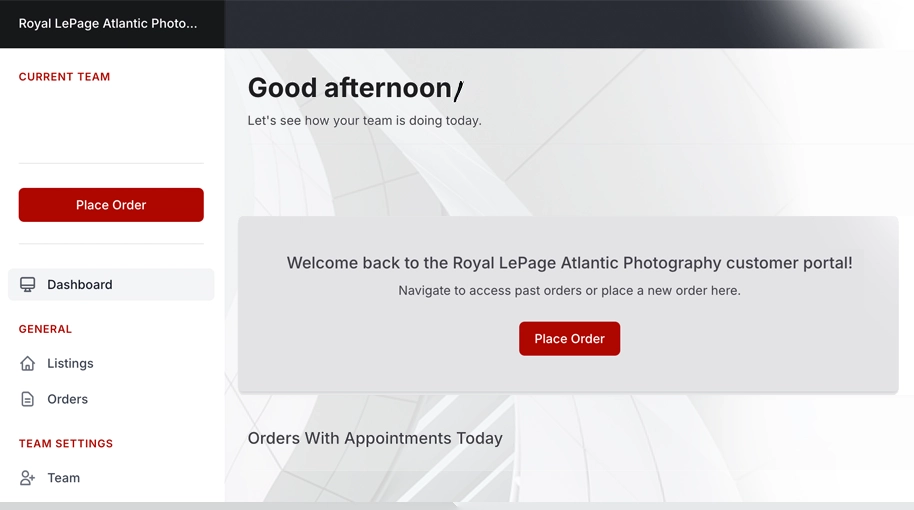
On the left side of your Dashboard Page, you will see your main menu
Select “Listings”
Under Listing, Search for your property
Now select that listing by clicking on the address
On the selected Listing Page, you can see all your Media
You can select “Download Media” or, click on a specific Media format
In Images, you can download all images by clicking on “Bulk Actions”
Click “Select All” then make your choice of action, Download; Print Quality, these are larger files meant for print and paper media, Web Quality smaller is file sizes. You can download specific photos and de-select those you wish to remove
You can also remove specific photos by going to that specific photo and selecting the “Trash Bin’ icon
By clicking on 3 dots of a specific image, you will be given a similar choice of actions
Each of the other media formats has unique menu options within
Photography - Learning Center
Using Our Mobile App
Using our Mobile App
Sign in to the app
In your “Order” menu, select your listing
On your listing page, scroll down to your Media
Here you can click on a media format
In images you can select specific images,
Or, back on your Listing Page, you can select the “Download Media” button to select all
Proceed Booking
Don't have an account? Create one.
When you book with an account, you will be able to track your payment status, track the confirmation and you can also rate the tour after you finished the tour.